Is Character.AI shutting down?
Not yet. On October 12, 2026, Character.AI filed for Chapter 11 bankruptcy to sell the company. The app and website are still running.
- The sale is expected to finish by the end of November or early December 2026. If no buyer keeps the platform running, Character.AI says it will be wound down.
- Disney’s opening bid of $20 million is for a non-exclusive license to some Character.AI intellectual property.
- Subscriptions remain active, and billing is unchanged for now.
The official backup can take weeks to arrive. Request it now rather than waiting for the outcome of the sale.
Status as of Character.AI updateSale announcement
Choose what to save
1. Request the official account backup
Processing can take 3–4 weeks. Download from the email within 7 days. Official instructions
- Step 1.
Sign in at Character.AI. Open your account menu at the bottom-left, then select Settings.
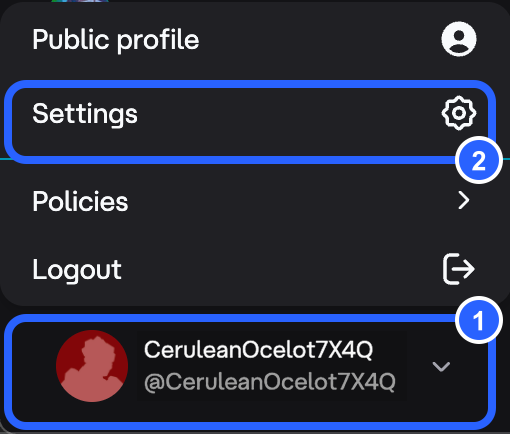
- Step 2.
Select Account → Manage Account & Data → Export data. Clicking Export data sends the request immediately.
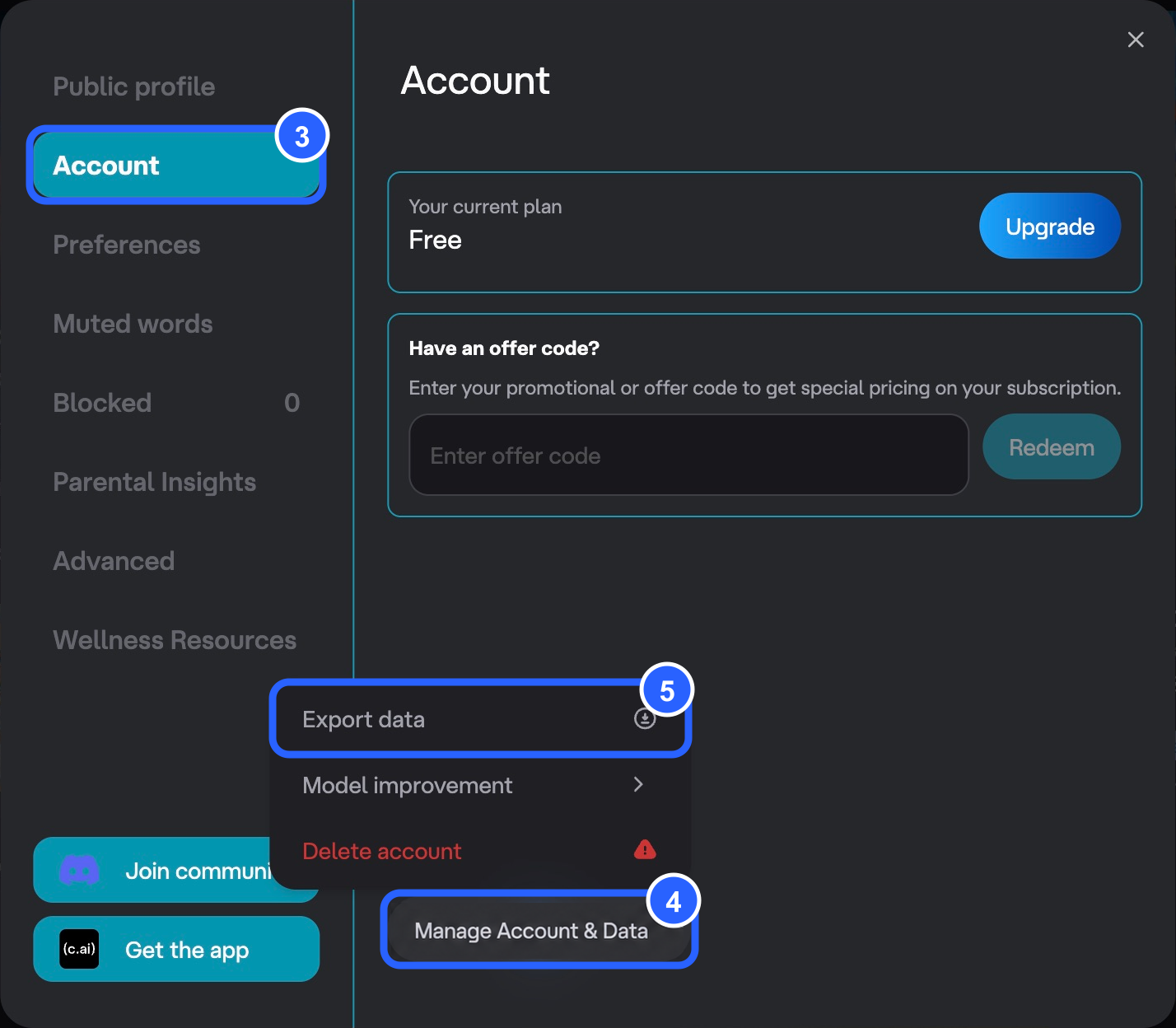
After submitting, you’ll see: “You’ll receive an email with a link to download your data.”
Check your inbox and spam folder. When the email arrives, download the file and keep the original backup. The ZIP’s password is your account email address in lowercase.
2. Save chats with CAI Tools
Before installing: CAI Tools is made by an independent developer, not Character.AI or elseone.ai. It can access your private chats. Review its permissions first.
Exports cover one character at a time and may omit alternate replies, memories or media. Verify the saved file before relying on it.
- Step 1.
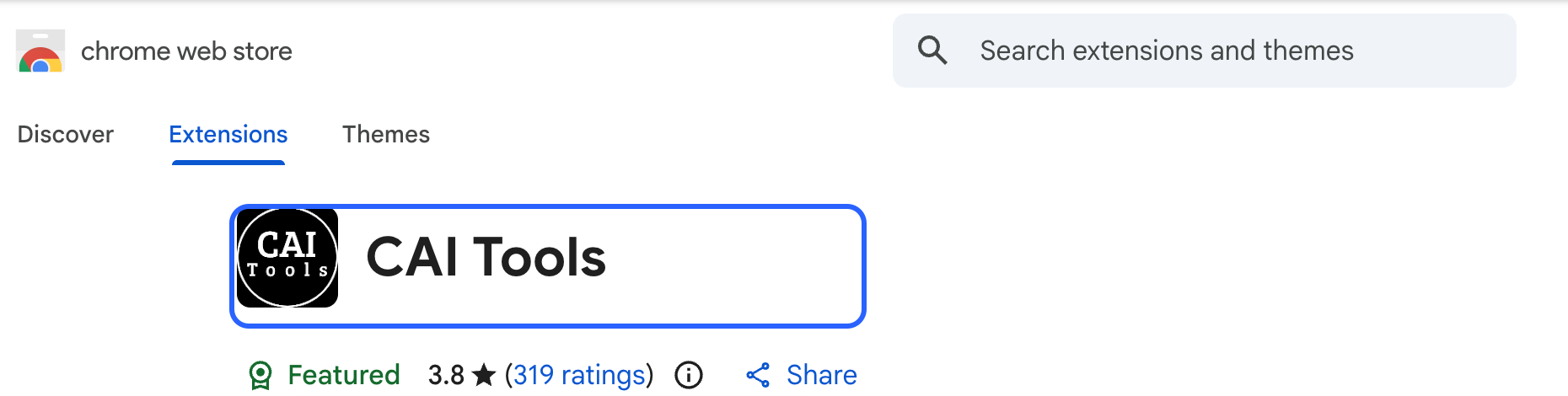
On desktop Chrome, open the CAI Tools store page. Check the name and developer (İrşat), read the permissions, then choose whether to install.
Check the extension name and logo
- Step 2.
Open a chat with the character you want to save and refresh the page. Click Chrome’s puzzle-piece Extensions menu → CAI Tools (sometimes named Chatbot Manager).
- Step 3.
In the extension, choose History → Download history. Select the conversations you want and keep the tab open until the HTML file downloads.
- Step 4.
Open the HTML file from Downloads and check the first and last messages. Repeat for each other character.
Need one chat as JSONL instead?
Open that conversation, then choose Chat → Download → Tavern / Silly T. This downloads only the current conversation. Check that your destination app accepts this format.
Keep backups private. After checking your files, you can disable or remove the extension in Chrome’s Extensions menu.
3. Export your character as JSON
Paste your own character settings below, then click Export character JSON. This saves settings, not chat history.
Your character text stays in your browser
Your text is not uploaded or sent to an AI service. No sign-in is needed.
Download before closing or refreshing this page; your entries are not saved automatically.
Need help?
My backup ZIP asks for a password
Character.AI’s download email says the password is your account email address in lowercase. That is the address you sign in with, not your Google, Apple or email password.
I haven’t received the export email
Exports can take weeks. Look for “Character AI User Data Export” from accounts@character.ai, and check spam. The download link expires 7 days after the email arrives.
More informationWhat is in the official backup?
Users report a password-protected ZIP with user.json, character.json and message.json. It does not include character definitions. Reports differ on whether the bot’s replies are included, so also save important chats with CAI Tools.
More informationCan I export someone else’s character?
Only what its creator made visible. Sharing a definition is optional, so a private definition cannot be copied. You can still save your chats with that character.
More informationWill my c.ai+ subscription keep billing?
Character.AI says subscriptions remain active and billing is unchanged for now. It says subscribers will be notified in advance if paid features change.
More informationI can’t find CAI Tools
Check that it is installed in the Chrome profile you are using. Refresh Character.AI, then open Chrome’s puzzle-piece menu. Look for CAI Tools or Chatbot Manager. Phone Chrome does not support this installation flow.
More informationWhy did I download an HTML file?
CAI Tools packages your chats as a webpage you can read on your device. Open it from Downloads to check the conversations. It has not been imported into another service.
More informationSources & verification
Checked October 14, 2026. Private details are masked or replaced with example text. Plugin formats were inspected in Firefox 3.8.2; Chrome versions may differ.